
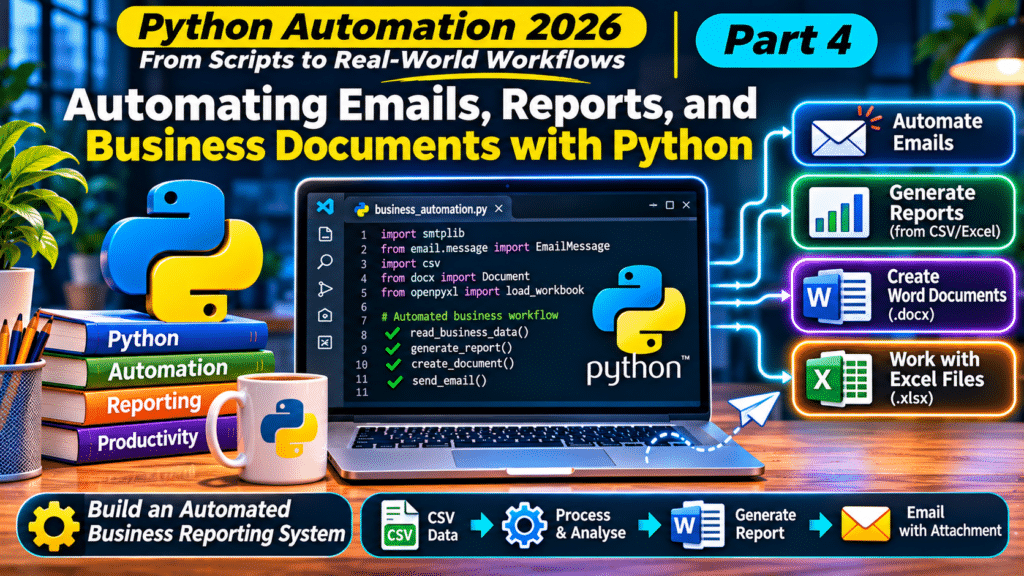
Part 4 of Python Automation 2026 — From Scripts to Intelligent Workflows
Imagine finishing a busy working day and having to prepare a report, calculate figures from a spreadsheet, create a Word document, attach it to an email, and send it to your manager.
Now imagine doing that every day or every week.
It can become repetitive, time-consuming, and frustrating.
But what if Python could handle most of that work?
With Python, you can read business data, generate documents, prepare reports, create email messages, and automate the delivery of information to the right people.
This is where automation becomes especially useful in business environments.
In Part 1, we introduced Python automation and built a simple file organizer. In Part 2, we explored file and folder automation. In Part 3, we learned how Python can interact with websites through APIs, web scraping, and browser automation.
Now, in Part 4, we’ll explore how Python can automate some of the administrative tasks that businesses and professionals perform regularly.
We’ll cover:
- Automating email messages with Python.
- Generating reports from CSV data.
- Creating Word documents automatically.
- Working with Excel files.
- Sending emails with document attachments.
- Handling errors and protecting email credentials.
- Building a practical automated business reporting system.
By the end of this article, you’ll have a working foundation for building Python-powered reporting and communication workflows.
1. Why Automate Emails, Reports, and Business Documents?
Almost every organisation handles information that needs to be communicated, documented, and stored.
Think about these everyday activities:
- Preparing weekly sales reports.
- Sending invoices and quotations.
- Generating employee attendance reports.
- Preparing meeting summaries.
- Sending customer notifications.
- Creating monthly performance reports.
- Distributing operational updates.
- Sending documents to clients and colleagues.
Many of these tasks involve repeating the same steps with different information.
For example, someone preparing a weekly sales report might have to:
- Open an Excel spreadsheet.
- Review the sales records.
- Calculate the total sales.
- Identify the best-performing products.
- Prepare a Word document.
- Attach the document to an email.
- Send it to management.
Python can automate several of these steps.
Instead of manually repeating the process, you can create a script that retrieves the information, performs calculations, generates a report, and prepares an email.
The result is a more consistent workflow with less manual effort.
However, automation does not eliminate the need for human judgement. Important reports, financial documents, and external communications should still have appropriate review and approval procedures.
2. Python Libraries for Email and Document Automation
Python has several libraries that make business automation possible.
Some are included in Python itself, while others need to be installed separately.
Let’s examine the most useful ones.
A. smtplib — Sending Emails
Python includes a module called smtplib.
It allows Python applications to communicate with email servers using SMTP (Simple Mail Transfer Protocol).
SMTP is a standard protocol used for sending email messages.
With smtplib, you can build scripts that send:
- Plain-text emails.
- HTML emails.
- Emails with attachments.
- Automated notifications.
- Scheduled reports.
Example:
import smtplib
from email.message import EmailMessage

message = EmailMessage()

message["Subject"] = "Python Automation Test"
message["From"] = "sender@example.com"
message["To"] = "recipient@example.com"

message.set_content(
    "Hello! This is an automated email sent using Python."
)

with smtplib.SMTP("smtp.example.com", 587) as server:
    server.starttls()
    server.login("sender@example.com", "YOUR_PASSWORD")
    server.send_message(message)

print("Email sent successfully.")
This is a demonstration. The SMTP server, account, and credentials must be replaced with valid settings from your email provider.
We’ll improve this example later by using environment variables to protect credentials.
B. csv — Working with CSV Reports
Python’s built-in csv module allows you to read and write CSV files.
CSV stands for Comma-Separated Values.
It is a simple format used to store structured information in rows and columns.
For example:
Product,Quantity,Price
Laptop,5,4500
Monitor,10,1200
Keyboard,20,150
Python can read this information and perform calculations.
Example:
import csv

with open("sales.csv", "r", encoding="utf-8") as file:

    reader = csv.DictReader(file)

    for row in reader:
        print(row["Product"], row["Quantity"])
This is useful when you need to process business information without opening a spreadsheet manually.
C. openpyxl — Automating Excel Files
Many businesses use Microsoft Excel for managing data.
The openpyxl library allows Python to read and write Excel .xlsx files.
Install it with:
pip install openpyxl
Example:
from openpyxl import load_workbook

workbook = load_workbook("sales.xlsx")

sheet = workbook.active

for row in sheet.iter_rows(
    min_row=2,
    values_only=True
):
    print(row)

workbook.close()
This example opens an Excel workbook and reads its rows.
You can also use openpyxl to create spreadsheets, format cells, insert formulas, and generate reports.
D. python-docx — Creating Word Documents
The python-docx library allows Python to create and modify Microsoft Word documents.
Install it using:
pip install python-docx
Example:
from docx import Document

document = Document()

document.add_heading(
    "Weekly Business Report",
    level=1
)

document.add_paragraph(
    "This report was generated automatically using Python."
)

document.add_heading(
    "Summary",
    level=2
)

document.add_paragraph(
    "The business recorded positive sales performance this week."
)

document.save("weekly_report.docx")

print("Word document created successfully.")
This makes it possible to generate professional documents without manually typing the same content every time.
E. reportlab — Creating PDF Documents
Sometimes, a business needs a PDF instead of a Word document.
The reportlab library can generate PDF documents using Python.
Install it with:
pip install reportlab
It is useful for creating:
- Invoices.
- Receipts.
- Business reports.
- Certificates.
- Printable summaries.
We’ll focus on Word and CSV in our main project, but PDF generation is a useful extension.
3. Automating Email Messages with Python
Let’s explore email automation in more detail.
Suppose you work in an organisation that sends a daily operational update to a team.
Instead of manually composing the same email every morning, you can prepare a Python script that creates the message using information from a file or database.
A basic email contains:
- Sender address.
- Recipient address.
- Subject.
- Message body.
- Optional attachments.
Python’s email.message module helps construct the message, while smtplib handles communication with the SMTP server.
Creating an HTML Email
Plain-text emails are useful, but HTML allows you to create more structured messages.
For example:
from email.message import EmailMessage

message = EmailMessage()

message["Subject"] = "Daily Operations Update"
message["From"] = "sender@example.com"
message["To"] = "team@example.com"

message.set_content(
    "Your email application does not support HTML messages."
)

message.add_alternative("""
<html>
<body>
    <h2>Daily Operations Update</h2>

    <p>Hello Team,</p>

    <p>Please find today's operational summary below.</p>

    <ul>
        <li>System status: Operational</li>
        <li>Pending tasks: 3</li>
        <li>Report status: Completed</li>
    </ul>

    <p>Regards,<br>Technical Team</p>
</body>
</html>
""", subtype="html")

print("HTML email prepared successfully.")
This example prepares an HTML email but does not send it.
The advantage is that the message can be generated dynamically.
For example, the number of pending tasks could come from a database or spreadsheet.
Sending an Email with an Attachment
Python can also attach files to email messages.
For example, you might want to send a generated report to a manager.
from email.message import EmailMessage
from pathlib import Path

message = EmailMessage()

message["Subject"] = "Weekly Report"
message["From"] = "sender@example.com"
message["To"] = "manager@example.com"

message.set_content(
    "Hello,\n\nPlease find the weekly report attached."
)

file_path = Path("weekly_report.docx")

if file_path.is_file():

    file_data = file_path.read_bytes()

    message.add_attachment(
        file_data,
        maintype="application",
        subtype="vnd.openxmlformats-officedocument.wordprocessingml.document",
        filename=file_path.name
    )

    print("Attachment added successfully.")

else:
    print("Report file not found.")
The add_attachment() method adds the document to the email.
The message is now ready to be sent through an SMTP server.
4. Protecting Email Credentials
Before building a complete email automation system, let’s discuss an important security issue.
You should never publish email passwords, API keys, or other credentials inside your Python source code.
For example, avoid writing:
password = "MyRealEmailPassword123"
If you upload this code to GitHub, anyone who can access the repository may be able to see the password.
A safer approach is to use environment variables.
Environment variables allow your application to retrieve configuration information from the operating system rather than storing it directly in the source code.
Example:
import os

email_address = os.getenv("EMAIL_ADDRESS")
email_password = os.getenv("EMAIL_PASSWORD")

if not email_address or not email_password:
    raise RuntimeError(
        "Email credentials are not configured."
    )
You can configure these variables in your operating system or through a secure deployment environment.
For a local Windows PowerShell session, for example:
$env:EMAIL_ADDRESS="your-email@example.com"
$env:EMAIL_PASSWORD="your-app-password"
These variables apply to that PowerShell session.
For Gmail accounts, sending through SMTP generally requires an app password when the account is eligible for that feature and two-step verification is enabled. Regular account passwords should not be substituted for app passwords. Other providers have their own authentication requirements.
For production applications, use a suitable secrets manager or your organisation’s approved credential-management system.
5. Generating Business Reports Automatically
Reports are among the most useful applications of Python automation.
Imagine a company that records daily sales in a CSV file.
At the end of each week, management needs a report showing:
- Total sales.
- Number of transactions.
- Average transaction value.
- Highest-value transaction.
- Sales by product.
Python can process the records and generate these figures automatically.
Let’s begin with a simple example.
Assume we have a file named sales.csv:
Date,Product,Quantity,UnitPrice
2026-11-16,Laptop,2,4500
2026-11-16,Monitor,3,1200
2026-11-17,Keyboard,5,150
2026-11-17,Laptop,1,4500
2026-11-18,Monitor,2,1200
We can use Python to calculate the sales value.
import csv
from decimal import Decimal

total_sales = Decimal("0")

with open("sales.csv", "r", encoding="utf-8") as file:

    reader = csv.DictReader(file)

    for row in reader:

        quantity = int(row["Quantity"])
        price = Decimal(row["UnitPrice"])

        sales_value = quantity * price

        total_sales += sales_value

print("Total Sales:", total_sales)
The Decimal class is used instead of floating-point arithmetic because it is generally more appropriate for calculations involving monetary values.
We can extend this script to calculate more business information.
import csv
from decimal import Decimal

total_sales = Decimal("0")
transactions = 0
highest_sale = Decimal("0")

with open("sales.csv", "r", encoding="utf-8") as file:

    reader = csv.DictReader(file)

    for row in reader:

        quantity = int(row["Quantity"])
        price = Decimal(row["UnitPrice"])

        sales_value = quantity * price

        total_sales += sales_value
        transactions += 1

        if sales_value > highest_sale:
            highest_sale = sales_value

average_sale = (
    total_sales / transactions
    if transactions
    else Decimal("0")
)

print("Total Sales:", total_sales)
print("Transactions:", transactions)
print("Average Sale:", average_sale)
print("Highest Sale:", highest_sale)
This is the foundation of an automated reporting system.
You can use the same approach for expenses, inventory, attendance, customer records, and other structured business data.
6. Creating Professional Word Reports with Python
After calculating the figures, the next step is turning them into a document that people can read and share.
The python-docx library makes this possible.
Let’s create a report containing:
- Report title.
- Report date.
- Business summary.
- Sales figures.
- Transaction details.
Example:
from docx import Document
from datetime import datetime
from decimal import Decimal

document = Document()

document.add_heading(
    "Weekly Sales Report",
    level=1
)

document.add_paragraph(
    f"Generated: {datetime.now():%d %B %Y}"
)

document.add_heading(
    "Executive Summary",
    level=2
)

document.add_paragraph(
    "This report provides a summary of the recorded sales transactions."
)

document.add_heading(
    "Sales Performance",
    level=2
)

table = document.add_table(
    rows=1,
    cols=2
)

table.style = "Light Shading Accent 1"

headers = table.rows[0].cells

headers[0].text = "Metric"
headers[1].text = "Value"

metrics = [
    ("Total Sales", "GHS 15,000.00"),
    ("Transactions", "13"),
    ("Average Sale", "GHS 1,153.85"),
]

for metric, value in metrics:

    cells = table.add_row().cells

    cells[0].text = metric
    cells[1].text = value

document.add_paragraph(
    "End of Report"
)

document.save("weekly_sales_report.docx")

print("Report generated successfully.")
This creates a Word document with a heading, summary, and formatted table.
The figures in this example are illustrative. In a real reporting application, you would populate the document using calculated values from your source data.
You can further improve the report by adding:
- Company logos.
- Headers and footers.
- Page numbers.
- Charts.
- Tables.
- Approval sections.
- Document references.
This is especially useful for organisations that generate similar documents regularly.
7. Building a Practical Project: Automated Business Reporting System
Now let’s combine the techniques into one project.
Our goal is to build a simple reporting application that:
- Reads sales data from a CSV file.
- Calculates total sales.
- Calculates the average transaction value.
- Identifies the highest-value transaction.
- Generates a Word report.
- Optionally emails the report as an attachment.
We’ll make email delivery an explicit option so that the script does not send messages unexpectedly.
Step 1: Create the project structure
Create a folder named:
automated-business-reporting/
│
├── main.py
├── sales.csv
├── requirements.txt
├── .gitignore
└── output/
Step 2: Install the required package
We will use python-docx to create the Word document.
Run:
pip install python-docxCreate requirements.txt:
python-docx
Step 3: Prepare the sample data
Create sales.csv:
Date,Product,Quantity,UnitPrice
2026-11-16,Laptop,2,4500
2026-11-16,Monitor,3,1200
2026-11-17,Keyboard,5,150
2026-11-17,Laptop,1,4500
2026-11-18,Monitor,2,1200
The application will use this data to calculate the report.
Step 4: Build the application
Create main.py:
import argparse
import csv
import os
import smtplib

from datetime import datetime
from decimal import Decimal, InvalidOperation
from email.message import EmailMessage
from pathlib import Path

from docx import Document


BASE_DIR = Path(__file__).resolve().parent
OUTPUT_DIR = BASE_DIR / "output"
REPORT_FILE = OUTPUT_DIR / "weekly_sales_report.docx"
CSV_FILE = BASE_DIR / "sales.csv"


def load_sales_data(file_path):
    """Read and validate sales records from CSV."""

    records = []

    with file_path.open(
        "r",
        newline="",
        encoding="utf-8"
    ) as file:

        reader = csv.DictReader(file)

        required_fields = {
            "Date",
            "Product",
            "Quantity",
            "UnitPrice"
        }

        if not required_fields.issubset(
            set(reader.fieldnames or [])
        ):
            raise ValueError(
                "CSV file is missing required columns."
            )

        for row_number, row in enumerate(reader, start=2):

            try:
                date = datetime.strptime(
                    row["Date"],
                    "%Y-%m-%d"
                ).date()

                product = row["Product"].strip()

                quantity = int(row["Quantity"])

                unit_price = Decimal(
                    row["UnitPrice"]
                )

                if not product:
                    raise ValueError("Product name is empty.")

                if quantity <= 0 or unit_price < 0:
                    raise ValueError(
                        "Quantity must be positive and price cannot be negative."
                    )

                records.append({
                    "date": date,
                    "product": product,
                    "quantity": quantity,
                    "unit_price": unit_price,
                    "total": quantity * unit_price
                })

            except (
                ValueError,
                InvalidOperation
            ) as error:

                raise ValueError(
                    f"Invalid data on CSV row {row_number}: {error}"
                ) from error

    return records


def calculate_summary(records):
    """Calculate sales summary information."""

    total_sales = sum(
        (record["total"] for record in records),
        Decimal("0")
    )

    transaction_count = len(records)

    average_sale = (
        total_sales / transaction_count
        if transaction_count
        else Decimal("0")
    )

    highest_sale = max(
        records,
        key=lambda record: record["total"],
        default=None
    )

    return {
        "total_sales": total_sales,
        "transactions": transaction_count,
        "average_sale": average_sale,
        "highest_sale": highest_sale
    }


def generate_report(records, summary):
    """Generate a Word sales report."""

    OUTPUT_DIR.mkdir(
        parents=True,
        exist_ok=True
    )

    document = Document()

    document.add_heading(
        "Weekly Sales Report",
        level=1
    )

    document.add_paragraph(
        f"Generated: {datetime.now():%d %B %Y, %H:%M}"
    )

    document.add_heading(
        "Executive Summary",
        level=2
    )

    document.add_paragraph(
        "This report summarises the sales records "
        "provided in the source CSV file."
    )

    summary_table = document.add_table(
        rows=1,
        cols=2
    )

    summary_table.style = "Light Shading Accent 1"

    summary_table.rows[0].cells[0].text = "Metric"
    summary_table.rows[0].cells[1].text = "Value"

    metrics = [
        (
            "Total Sales",
            f"GHS {summary['total_sales']:,.2f}"
        ),
        (
            "Transactions",
            str(summary["transactions"])
        ),
        (
            "Average Sale",
            f"GHS {summary['average_sale']:,.2f}"
        )
    ]

    for label, value in metrics:

        cells = summary_table.add_row().cells

        cells[0].text = label
        cells[1].text = value

    document.add_heading(
        "Highest-Value Transaction",
        level=2
    )

    highest = summary["highest_sale"]

    if highest:

        document.add_paragraph(
            f"Product: {highest['product']}"
        )

        document.add_paragraph(
            f"Date: {highest['date']}"
        )

        document.add_paragraph(
            f"Transaction Value: GHS {highest['total']:,.2f}"
        )

    else:

        document.add_paragraph(
            "No sales records were available."
        )

    document.add_heading(
        "Transaction Details",
        level=2
    )

    table = document.add_table(
        rows=1,
        cols=5
    )

    table.style = "Light Shading Accent 1"

    headers = [
        "Date",
        "Product",
        "Quantity",
        "Unit Price",
        "Total"
    ]

    for index, header in enumerate(headers):
        table.rows[0].cells[index].text = header

    for record in records:

        cells = table.add_row().cells

        cells[0].text = str(record["date"])
        cells[1].text = record["product"]
        cells[2].text = str(record["quantity"])

        cells[3].text = (
            f"GHS {record['unit_price']:,.2f}"
        )

        cells[4].text = (
            f"GHS {record['total']:,.2f}"
        )

    document.add_paragraph(
        "This report was generated automatically using Python."
    )

    document.save(REPORT_FILE)

    print(f"Report generated: {REPORT_FILE}")

    return REPORT_FILE


def send_report(report_path, recipient):
    """Email the generated report as an attachment."""

    email_address = os.getenv("EMAIL_ADDRESS")
    email_password = os.getenv("EMAIL_PASSWORD")

    smtp_host = os.getenv("SMTP_HOST")
    smtp_port = int(os.getenv("SMTP_PORT", "587"))

    if not all([
        email_address,
        email_password,
        smtp_host
    ]):
        raise RuntimeError(
            "Email configuration is incomplete. "
            "Set EMAIL_ADDRESS, EMAIL_PASSWORD, and SMTP_HOST."
        )

    message = EmailMessage()

    message["Subject"] = "Automated Weekly Sales Report"
    message["From"] = email_address
    message["To"] = recipient

    message.set_content(
        "Hello,\n\n"
        "Please find the automated weekly sales report attached.\n\n"
        "Regards,\n"
        "Automated Reporting System"
    )

    message.add_attachment(
        report_path.read_bytes(),
        maintype="application",
        subtype="vnd.openxmlformats-officedocument.wordprocessingml.document",
        filename=report_path.name
    )

    with smtplib.SMTP(
        smtp_host,
        smtp_port,
        timeout=30
    ) as server:

        server.ehlo()
        server.starttls()
        server.ehlo()

        server.login(
            email_address,
            email_password
        )

        server.send_message(message)

    print(f"Report emailed to {recipient}")


def main():

    parser = argparse.ArgumentParser(
        description="Automated Business Reporting System"
    )

    parser.add_argument(
        "--send",
        action="store_true",
        help="Send the generated report by email"
    )

    parser.add_argument(
        "--to",
        help="Email address of the report recipient"
    )

    args = parser.parse_args()

    if args.send and not args.to:
        parser.error("--to is required when using --send.")

    try:

        records = load_sales_data(CSV_FILE)

        summary = calculate_summary(records)

        print("\nSales Summary")
        print("-" * 30)

        print(
            f"Total Sales: GHS {summary['total_sales']:,.2f}"
        )

        print(
            f"Transactions: {summary['transactions']}"
        )

        print(
            f"Average Sale: GHS {summary['average_sale']:,.2f}"
        )

        report = generate_report(
            records,
            summary
        )

        if args.send:

            send_report(
                report,
                args.to
            )

        else:

            print(
                "\nEmail not sent. "
                "Use --send and --to to enable email delivery."
            )

    except (
        OSError,
        ValueError,
        RuntimeError,
        smtplib.SMTPException
    ) as error:

        print(f"Automation failed: {error}")


if __name__ == "__main__":
    main()
Step 5: Run the application
First, generate the report without sending an email.
python main.pyThe application will:
- Read the CSV file.
- Validate the sales records.
- Calculate the sales summary.
- Generate the Word document.
- Save the document inside the
outputdirectory.
You should see output similar to:
Sales Summary
------------------------------
Total Sales: GHS 20,250.00
Transactions: 5
Average Sale: GHS 4,050.00

Report generated: output/weekly_sales_report.docx

Email not sent. Use --send and --to to enable email delivery.
The values above are based on the sample data in this article.
Open output/weekly_sales_report.docx to view the generated report.
Step 6: Configure email delivery
Before enabling email delivery, configure the SMTP settings and credentials in your environment.
For example, a Gmail SMTP configuration commonly uses:
$env:SMTP_HOST="smtp.gmail.com"
$env:SMTP_PORT="587"
$env:EMAIL_ADDRESS="your-email@gmail.com"
$env:EMAIL_PASSWORD="your-app-password"
Use an eligible account’s app password or another authentication method supported by your provider. Do not commit credentials to GitHub.
To send the report:
python main.py --send --to manager@example.comReplace the example recipient with an authorised recipient.
The application will generate the report first and then email it as an attachment.
Important: Test the email workflow using your own account or an approved test recipient before using it for business communications. Confirm that the report contains the correct information and that the recipient is authorised to receive it.
8. Automating Reports on a Schedule
So far, we have run the reporting application manually.
But what if the report needs to be generated every Monday morning?
Python scripts can be scheduled to run automatically using operating-system scheduling tools.
Two common options are:
Windows Task Scheduler
Windows Task Scheduler allows you to run programs at specified times or intervals.
You can create a task that launches your Python reporting script every Monday.
For example, the program could run:
python C:\Projects\automated-business-reporting\main.pyYou can configure the task to run using the correct Python environment and working directory.
Linux Cron
Linux systems commonly use cron to schedule recurring tasks.
For example:
0 8 * * 1 /usr/bin/python3 /home/user/automated-business-reporting/main.pyThis schedules the script to run at 8:00 AM every Monday, using the system’s configured timezone.
The actual Python path and project location should be adjusted to match your environment.
Important Scheduling Considerations
Before scheduling business automation, consider:
- Whether the computer or server will be available at the scheduled time.
- Whether the required files and network connections will be accessible.
- Whether the script can recover from temporary failures.
- Whether the application should send an email automatically.
- How execution logs and errors will be monitored.
- How duplicate reports or duplicate emails will be prevented.
Scheduling makes automation more useful, but reliable execution still requires monitoring and proper error handling.
9. Security and Reliability Best Practices
Email and document automation can involve sensitive business information.
A poorly designed script could send a report to the wrong person, expose confidential information, or repeatedly distribute incorrect data.
Here are important practices to follow.
Protect Credentials
Never store real email passwords, API keys, or authentication tokens directly in source code.
Use environment variables or a secrets-management system.
Verify Recipients
Before sending an automated email, confirm that the recipient address is correct and authorised to receive the information.
Review Important Documents
For sensitive financial reports, invoices, contracts, and official business documents, include an approval step before distribution.
Validate Source Data
A report is only as reliable as the information used to generate it.
Check for missing values, incorrect dates, invalid numbers, and duplicated records.
Avoid Sending Duplicate Emails
If a script runs more than once, it should not unintentionally send the same report repeatedly.
Consider maintaining a record of completed reporting periods and successful deliveries.
Use Logging
Record important events such as:
- Report generation started.
- Data processing completed.
- Report saved successfully.
- Email delivery attempted.
- Email delivery succeeded or failed.
Protect Sensitive Files
Generated reports should be saved in directories with appropriate access permissions.
Avoid publishing private business information in public repositories.
For your GitHub projects, use sample data rather than real customer or company records.
10. Real-World Applications
Email and document automation can support many industries.
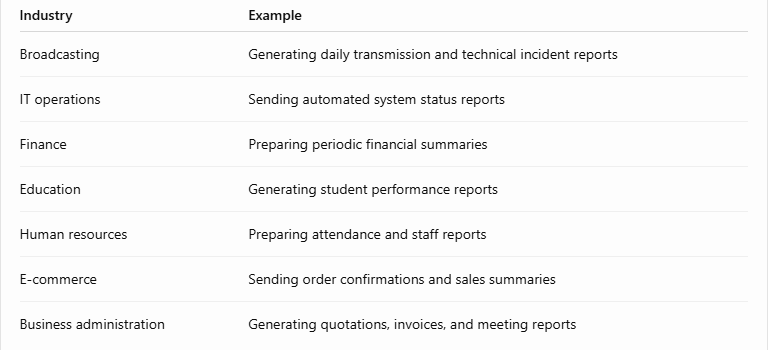
Consider a broadcasting organisation that records technical incidents during daily operations.
At the end of a shift, a Python application could collect incident records, generate a structured technical report, and prepare an email for the engineering team.
The same concept can be applied to maintenance records, equipment inventories, transmission monitoring reports, and other operational documents.
The goal is not to remove technical staff from the reporting process. It is to reduce repetitive administrative work so they can focus on analysis, troubleshooting, and decision-making.
11. Practical Challenges
Now it’s your turn to practise.
Try these exercises to strengthen your understanding.
Challenge 1: Automated Email Notification
Create a Python script that sends a notification email when a task is completed.
Include a subject, message body, and timestamp.
Use a test recipient while developing.
Challenge 2: Excel Report Generator
Modify the reporting project to read information from an Excel workbook using openpyxl instead of a CSV file.
Calculate the total and average values and generate a report.
Challenge 3: PDF Report Generator
Extend the project to generate a PDF version of the Word report using ReportLab.
Challenge 4: Automated Invoice Generator
Create a Python application that accepts customer information, product descriptions, quantities, and prices, then generates a basic invoice.
Include an invoice number, date, subtotal, and total.
Challenge 5: Scheduled Reporting
Configure Windows Task Scheduler or Linux cron to run your report-generation script automatically.
Add logging so you can confirm when the application runs successfully.
Challenge 6: Email Approval Workflow
Modify the application so it generates a report first but requires a user to approve the email before sending it.
This is particularly useful when dealing with sensitive or important business information.
Conclusion: Turn Repetitive Office Work into Automated Workflows
Emails, reports, and business documents are part of everyday professional life.
Although these activities are necessary, preparing them manually can consume valuable time.
Python gives you the tools to automate much of this work.
With libraries such as smtplib, csv, openpyxl, and python-docx, you can build applications that process information, generate documents, and distribute reports.
The most important lesson is that automation should improve the quality and consistency of work, not simply make tasks faster.
Start with a simple report. Add document generation. Introduce email delivery. Then improve the workflow with scheduling, logging, validation, and approval controls.
Small automation projects can gradually become valuable business tools.
Explore the Code on GitHub
Follow the practical projects in the official repository:
Python Automation 2026 — Official GitHub Repository
You can use the repository to practise the examples, experiment with the code, and follow the complete ten-part series.
What’s Next?
In Part 5, we’ll explore Working with Excel, CSV, and Business Data Automatically with Python.
We’ll go deeper into data processing, spreadsheet automation, data cleaning, calculations, and generating useful business insights from structured information.
If you’ve been following the series, keep practising and share what you build.
Learn. Build. Automate.
Related articles

Practical Technology Solutions for Businesses, Churches and Organisations: Understanding ABK Technologies’ New Service Packages
Technology has become an important part of how businesses operate, communicate with customers, deliver services, and grow. Whether you run a small business, manage…
Read article
Python Automation 2026 — Part 3: Web Automation with Python: APIs, Forms, and Browser Workflows
Part 3 of Python Automation 2026 — From Scripts to Intelligent Workflows Imagine opening a website every morning, logging into an account, collecting information,…
Read article
Python Automation 2026 — Part 2: Automating Files, Folders, and Everyday Tasks with Python
Part 2 of Python Automation 2026 — From Scripts to Intelligent Workflows Imagine starting your working day and discovering that your computer has already…
Read article← Why a Core i5 Can Be Faster Than a Core i7: Understanding Intel Processor Names
Leave a comment