
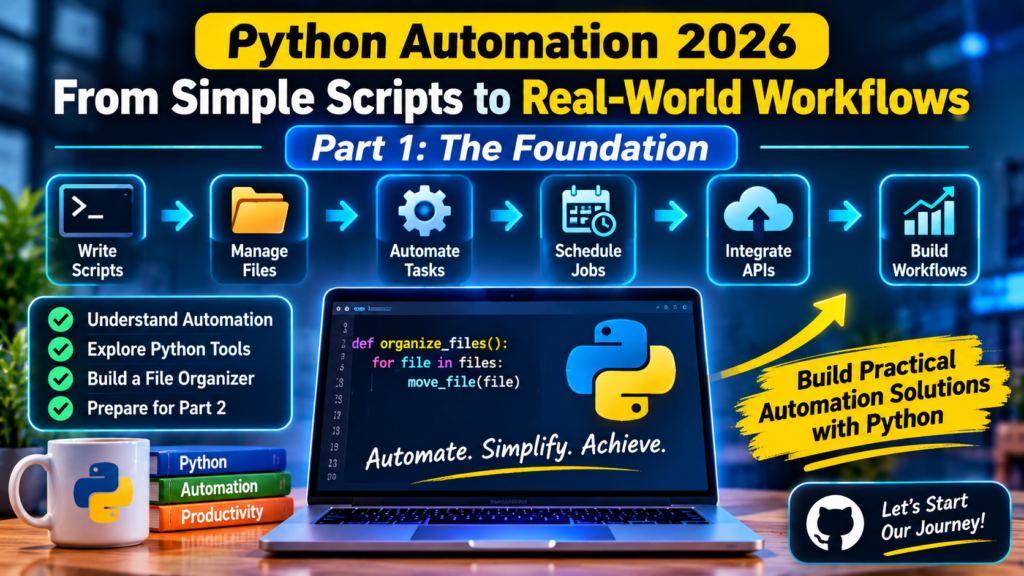
Part 1 of Python Automation 2026 — From Scripts to Intelligent Workflows
Imagine arriving at work on Monday morning and discovering that hundreds of files have already been organized, your weekly report has been generated, server checks have been completed, and the information you need has been collected.
You did not spend your morning doing these tasks manually. A Python program handled them while you focused on other responsibilities.
This is not science fiction. It is a practical application of Python automation.
In our introductory article, Python Automation 2026: From Scripts to Real-World Workflows, we introduced the new series and explored the opportunities automation creates for individuals, businesses, developers, and IT professionals.
Today, we begin the technical journey.
Our objective is to understand what Python automation really means, how it works, where it is useful, and how to move from writing simple scripts to building dependable automation workflows.
We will also build our first practical project: a Python file organizer.
Let’s get started.
1. What exactly is automation?
Automation is the use of technology to perform tasks with minimal human intervention.
Instead of manually repeating the same instructions, we define a process and allow a computer system to execute those instructions.
Consider a simple example.
Every morning, an IT administrator checks whether several servers are responding. The administrator opens a terminal, runs network checks, records the results, and reports any failures.
This process may take only a few minutes, but it happens every day.
With automation, a Python program can perform those checks, record the results, and generate a notification when something goes wrong.
The administrator still makes important decisions, but the repetitive checking process no longer needs to be performed manually.
That is the central idea behind automation:
Identify a repetitive process, define the rules, and allow software to execute the process consistently.
2. Why Python is useful for automation
There are many programming languages and platforms that support automation. However, Python has become a popular choice because of its simplicity, flexibility, and extensive ecosystem.
Here are some reasons developers and IT professionals use it.
Readable syntax
Python code is relatively easy to understand, even for people who are new to programming.
Extensive standard library
Python comes with built-in modules for working with files, folders, dates, data formats, networking, processes, and more.
Third-party libraries
When built-in functionality is not enough, developers can use libraries such as:
requestsfor HTTP communication.pandasfor data processing.openpyxlfor working with Excel files.seleniumfor browser automation.schedulefor straightforward recurring tasks.psutilfor monitoring system resources.
Cross-platform support
Python is available on Windows, Linux, and macOS, making it suitable for many different environments.
Integration capabilities
Python can communicate with APIs, databases, cloud platforms, operating-system services, and other applications.
This makes it possible to connect processes that would otherwise require manual intervention.
3. Understanding the different types of automation
Before writing automation scripts, it is important to understand that not all automation works in the same way.
Let’s examine four common approaches.
A. Rule-based automation
This is the simplest and most common form of automation.
You define specific instructions, conditions, and actions. The computer follows those instructions.
For example:
- If a file is a PDF, move it into the Documents folder.
- If disk usage exceeds 90%, generate an alert.
- If a customer payment is confirmed, update the transaction record.
The program does not need to understand the situation like a human. It simply follows the rules you provide.
B. Scheduled automation
Some tasks must happen repeatedly at specific times or intervals.
Examples include:
- Generating daily reports at 6:00 AM.
- Backing up files every evening.
- Checking website availability every five minutes.
- Sending weekly performance summaries.
These tasks can be automated using operating-system schedulers such as Windows Task Scheduler and Linux cron, or Python scheduling libraries.
C. Event-driven automation
In event-driven automation, an action happens in response to a particular event.
For example:
- A new file arrives in a folder, triggering a processing script.
- A customer submits a form, triggering an email notification.
- An application receives a webhook, triggering a database update.
- A monitoring system detects a failure, triggering an alert.
This approach is especially useful when systems need to respond to events rather than wait for a scheduled execution.
D. AI-assisted automation
Artificial intelligence introduces another dimension.
Traditional automation is generally effective when the instructions and expected outcomes are clearly defined.
However, some tasks involve unstructured information, language, or classification.
For example:
- Categorizing customer feedback.
- Extracting information from documents.
- Summarizing technical reports.
- Classifying incoming support requests.
- Identifying important information in large volumes of text.
An AI model can help interpret the information, while Python coordinates the workflow, communicates with services, validates results, and performs approved actions.
This is particularly relevant as organizations explore AI-powered applications and intelligent workflows.
However, AI is not automatically the best choice for every task. If a simple Python condition can solve a problem reliably, there may be no reason to introduce an AI model.
The best automation is not necessarily the most complicated one. It is the simplest reliable solution that meets the requirement.
4. From a simple script to a real-world workflow
Let’s look at how an ordinary repetitive task can evolve into a complete automation system.
Suppose an organization receives hundreds of files every week from different departments.
Employees manually inspect each file and move it into the appropriate folder.
We can approach this problem in stages.

Notice that the process becomes more capable as we introduce additional components.
A simple script can solve the original problem. But a dependable workflow also needs to consider errors, security, monitoring, scheduling, and integration.
This distinction will become important throughout our series.
5. Our first practical project: Build a Python file organizer
Let’s put theory into practice.
Imagine you have a folder containing hundreds of files:
- PDF documents.
- Word documents.
- Images.
- Excel spreadsheets.
- Text files.
- ZIP archives.
Instead of manually sorting these files, we will create a Python script that organizes them into folders based on their file extensions.
For example:
sample_files/
│
├── report.pdf
├── photograph.jpg
├── budget.xlsx
├── notes.txt
├── presentation.docx
├── backup.zip
│
After running our program, the folder should look like this:
sample_files/
│
├── PDFs/
│   └── report.pdf
│
├── Images/
│   └── photograph.jpg
│
├── Spreadsheets/
│   └── budget.xlsx
│
├── Text_Files/
│   └── notes.txt
│
├── Documents/
│   └── presentation.docx
│
└── Archives/
    └── backup.zip
Step 1: Prepare your environment
Make sure Python is installed on your computer.
Open your code editor and create a project folder named:
python-file-organizer
Inside it, create another folder named:
sample_files
Place a few sample files inside that folder.
Your project structure should look like this:
python-file-organizer/
│
├── organizer.py
│
└── sample_files/
    ├── report.pdf
    ├── photograph.jpg
    ├── budget.xlsx
    └── notes.txt
Step 2: Write the Python code
Open organizer.py and enter the following code:
from pathlib import Path
import shutil

# Folder containing the files to organize
SOURCE_DIR = Path("sample_files")

# Start in preview mode for safety
DRY_RUN = True

# Map file extensions to destination folders
FILE_CATEGORIES = {
    ".pdf": "PDFs",
    ".jpg": "Images",
    ".jpeg": "Images",
    ".png": "Images",
    ".gif": "Images",
    ".doc": "Documents",
    ".docx": "Documents",
    ".txt": "Text_Files",
    ".csv": "Spreadsheets",
    ".xls": "Spreadsheets",
    ".xlsx": "Spreadsheets",
    ".zip": "Archives",
    ".rar": "Archives",
}

def get_destination(file_path):
    """Determine the destination folder for a file."""

    category = FILE_CATEGORIES.get(
        file_path.suffix.lower(),
        "Others"
    )

    return SOURCE_DIR / category


def unique_destination(destination):
    """Avoid overwriting files with the same name."""

    if not destination.exists():
        return destination

    counter = 1

    while True:
        new_destination = (
            destination.parent /
            f"{destination.stem}_{counter}{destination.suffix}"
        )

        if not new_destination.exists():
            return new_destination

        counter += 1


def organize_files():
    """Organize files according to their extensions."""

    if not SOURCE_DIR.is_dir():
        print(f"Folder not found: {SOURCE_DIR}")
        return

    files = [
        item for item in SOURCE_DIR.iterdir()
        if item.is_file()
    ]

    if not files:
        print("No files found to organize.")
        return

    for file_path in files:

        destination_folder = get_destination(file_path)

        destination = unique_destination(
            destination_folder / file_path.name
        )

        if DRY_RUN:
            print(
                f"[PREVIEW] {file_path.name} "
                f"-> {destination_folder.name}/"
                f"{destination.name}"
            )

        else:
            destination_folder.mkdir(
                parents=True,
                exist_ok=True
            )

            shutil.move(
                str(file_path),
                str(destination)
            )

            print(f"Moved: {file_path.name}")

    if DRY_RUN:
        print("\nPreview completed.")
        print("Set DRY_RUN = False to move the files.")


if __name__ == "__main__":
    organize_files()
Step 3: Understand what the code does
Let’s break down the important parts.
1. Importing modules
from pathlib import Path
import shutil
We import two Python modules.
pathlib helps us work with file and directory paths in a convenient, cross-platform way.
shutil provides higher-level file operations, including moving files.
2. Defining the source folder
SOURCE_DIR = Path("sample_files")This tells Python where to find the files we want to organize.
3. Mapping file extensions
FILE_CATEGORIES = {
    ".pdf": "PDFs",
    ".jpg": "Images",
    ".xlsx": "Spreadsheets",
}
This dictionary tells the program which folder should receive each file type.
For example, a file ending in .pdf goes into the PDFs folder.
4. Determining the destination
category = FILE_CATEGORIES.get(
    file_path.suffix.lower(),
    "Others"
)
The program examines the file extension and finds its corresponding category.
The .lower() method ensures that extensions such as .PDF and .pdf are treated consistently.
If an extension is not in our dictionary, the file goes into the Others folder.
5. Preventing accidental overwrites
Our unique_destination() function checks whether a file with the same name already exists.
If it does, the program creates an alternative filename.
For example:
report.pdf
report_1.pdf
report_2.pdf
This helps prevent existing files from being overwritten.
6. Preview mode
One of the most important features is:
DRY_RUN = TrueThis means the program displays what it intends to do without actually moving files.
Once you have checked the preview and are satisfied with the results, change it to:
DRY_RUN = FalseThe program will then perform the file movements.
This is a simple example of a safety mechanism in automation: preview the intended changes before executing them.
Step 4: Run the program
Open your terminal inside the project folder and execute:
python organizer.pyOn some systems, you may need to use:
python3 organizer.pyWith preview mode enabled, you should see output similar to this:
[PREVIEW] report.pdf -> PDFs/report.pdf
[PREVIEW] photograph.jpg -> Images/photograph.jpg
[PREVIEW] budget.xlsx -> Spreadsheets/budget.xlsx
[PREVIEW] notes.txt -> Text_Files/notes.txt

Preview completed.
Set DRY_RUN = False to move the files.
If everything looks correct, change DRY_RUN to False and run the program again.
Congratulations! You have built your first Python automation script.
You have taken a repetitive manual task and converted it into a process that a computer can execute.
6. What makes this a real automation project?
At first glance, our file organizer looks like a small Python program. But it introduces several concepts that appear in larger automation systems.
Input: The files inside the source directory.
Processing: Python examines file extensions and determines categories.
Rules: The dictionary defines where each file should go.
Execution: The shutil module moves the files.
Safety: Preview mode allows us to inspect intended changes before execution.
Error prevention: Duplicate filenames are handled without overwriting existing files.
This is a basic automation workflow:
Input → Processing → Decision → Action → Result
More advanced automation systems use the same fundamental structure, although they may involve databases, APIs, cloud services, monitoring systems, and multiple applications.
7. Important considerations before automating real-world tasks
A script that works on a test folder is not automatically ready for production.
When developing automation for an organization, consider the following.
Test with sample data first.
Never experiment with important business files. Use copies or a dedicated test environment.
Understand permissions.
An automation program should only have access to the files, folders, systems, and services it needs.
Handle failures.
What happens if a file is locked, a network connection fails, or a destination folder cannot be created? Production automation should handle such situations deliberately.
Keep records.
Logging helps administrators understand what the program did, when it ran, and whether anything went wrong.
Protect sensitive information.
If automation connects to databases, APIs, or cloud services, credentials should be managed securely. They should not be hardcoded into publicly shared scripts.
Include human approval where necessary.
Some actions are too important to execute without review. Financial transactions, account changes, and deletion of critical information may require confirmation or additional controls.
We will explore these subjects in greater detail in later parts of this series.
8. When should you automate a task?
Not every task needs automation.
Before writing a script, ask yourself:
- Is this task repetitive?
- Does it follow predictable steps or rules?
- Does it consume significant time?
- Can the process be clearly defined?
- Can errors be detected and handled?
- What happens if the automation makes a mistake?
A good automation candidate is generally repetitive, rules-based, measurable, and reasonably safe to execute.
For example, organizing files by extension is a good candidate because the rules are clear.
Making a complex business decision that depends on context, experience, and judgment may not be suitable for full automation.
The objective is not to automate everything. It is to identify where automation creates meaningful value.
9. Your practical challenge
Now it is your turn.
Take the file organizer we have just built and extend it.
Try completing these five challenges:
- Add support for audio and video files.
- Add a category for PowerPoint presentations.
- Modify the program to display the total number of files organized.
- Add a log file that records each operation.
- Experiment with duplicate filenames to confirm that existing files are protected.
You can also create your own test folder with different file types and see how the program behaves.
Do not worry if you cannot complete every challenge immediately. The objective is to experiment, understand the code, and gradually improve your solution.
10. What comes next?
In Part 2, we will go deeper into one of the most useful areas of Python automation:
Automating Files, Folders, and Everyday Tasks with Python.
We will explore how to:
- Create, rename, move, copy, and delete files programmatically.
- Search directories and identify specific files.
- Work with file metadata, extensions, and timestamps.
- Process large collections of files.
- Build more practical file-management automation tools.
Our file organizer today is only the starting point. Next week, we will expand our understanding and develop more capable solutions.
Final thoughts
Python automation is not simply about writing code that performs tasks quickly.
It is about understanding a process, identifying repetitive work, defining reliable rules, and designing software that can execute those rules safely and consistently.
A small script that saves someone 15 minutes every day can create real value. A well-designed workflow that connects several business applications can create even greater value.
The journey from simple scripts to intelligent workflows begins with understanding the problem you want to solve.
And that is exactly what we will continue doing throughout this series.
Let’s build something useful, one automation at a time.
Follow this series every Wednesday as we explore Python automation through practical lessons and real-world projects.
Official repository: ABKarikari23/Python-Automation-2026
Leave a Reply