
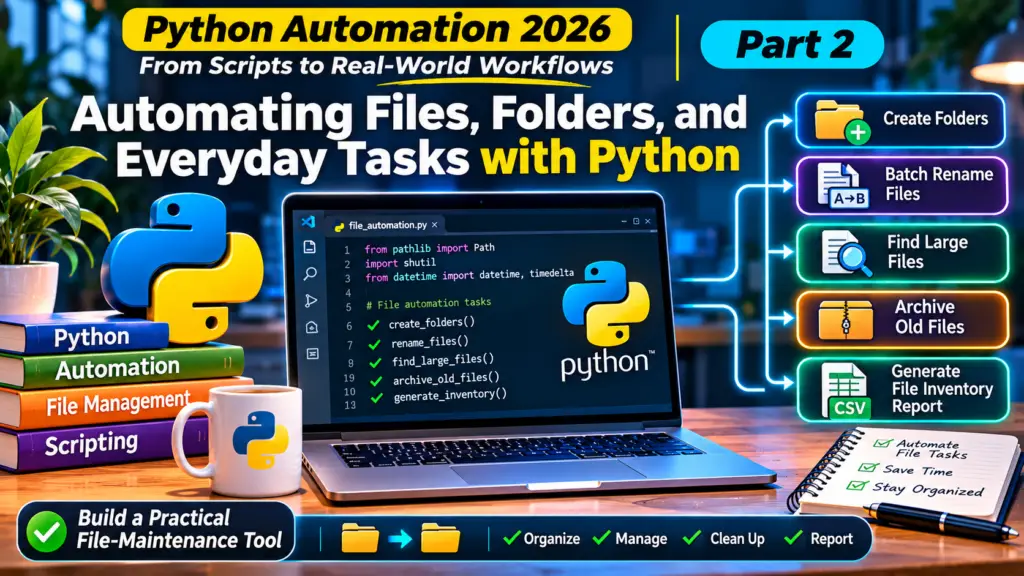
Part 2 of Python Automation 2026 — From Scripts to Intelligent Workflows
Imagine starting your working day and discovering that your computer has already created your project folders, renamed hundreds of files, generated a file inventory, and moved old documents into an archive.
You didn’t spend hours doing it manually. You wrote a Python script once, and it handled the repetitive work for you.
This is one of the most practical applications of Python automation.
In Part 1 of this series, we explored what Python automation means in 2026, examined different types of automation, and built a simple file organizer.
In this article, we’ll take things further by learning how to automate file and folder operations, perform batch renaming, inspect directories, generate reports, and safely archive older files.
Whether you’re a developer, IT professional, content creator, student, or business operator, these techniques can help you reduce repetitive work and improve productivity.
By the end of this article, you will have built a practical Python file-maintenance tool.
1. Why Automate Files and Folders?
File management is one of those activities that appears simple until you have to do it at scale.
Consider these everyday situations:
- A photographer needs to rename 500 images.
- An IT administrator needs to identify files consuming too much storage.
- A business needs to archive documents older than a specific date.
- A developer needs to create the same folder structure for multiple projects.
- A media professional needs to manage hundreds of video, audio, and graphics files.
- An office administrator needs to generate a report of files stored in a shared folder.
Performing these tasks manually takes time and introduces opportunities for mistakes.
Python allows us to automate them through scripts that can inspect directories, create folders, rename files, move documents, and generate reports.
The real advantage is consistency. Once a workflow is properly designed and tested, it can be executed repeatedly using the same rules.
2. Python Modules for File-System Automation
Python provides several built-in modules that make file and folder automation possible.
You don’t need to install an external package to get started.
pathlib — Working with files and directories
The pathlib module provides an object-oriented approach to working with file-system paths.
It allows you to:
- Create paths.
- Check whether files or directories exist.
- List files in a directory.
- Retrieve file extensions.
- Create directories.
- Rename files.
- Navigate between parent and child directories.
Example:
from pathlib import Path

folder = Path("C:/Users/YourName/Downloads")

if folder.exists():
    print("Folder exists")

    for file in folder.iterdir():
        print(file.name)
else:
    print("Folder not found")
One important advantage of pathlib is that it handles path construction across different operating systems.
shutil — Moving and copying files
The shutil module provides higher-level operations for file management.
It supports:
- Copying files.
- Moving files.
- Copying entire directory structures.
- Removing directories.
Example:
import shutil
from pathlib import Path

source = Path("report.pdf")
destination = Path("archive/report.pdf")

destination.parent.mkdir(parents=True, exist_ok=True)

if source.exists() and not destination.exists():
    shutil.copy2(source, destination)
    print("File copied successfully")
Notice the use of copy2(). It attempts to preserve file metadata such as modification timestamps.
os — Operating-system interaction
The os module provides functionality for interacting with the operating system.
It can help you inspect environment variables, retrieve directory information, and perform operating-system-level operations.
Example:
import os

print("Current working directory:")
print(os.getcwd())
For most modern file and folder operations, pathlib is a good starting point. However, os remains useful when you need lower-level operating-system functionality.
datetime — Working with dates and timestamps
The datetime module is useful when automating tasks based on file dates.
For example, you might want to identify documents that haven’t been modified in 90 days.
from datetime import datetime

now = datetime.now()

print("Current date and time:", now)
We will use this concept when building our archiving example.
3. Automating Folder Creation
Many projects require a predictable folder structure.
For example, a video production project might require:
Video_Project/
│
├── Footage/
├── Audio/
├── Graphics/
├── Exports/
├── Scripts/
└── Documents/
Instead of creating these folders manually every time, Python can do it for us.
from pathlib import Path

project_name = "Video_Project"

folders = [
    "Footage",
    "Audio",
    "Graphics",
    "Exports",
    "Scripts",
    "Documents"
]

project_path = Path(project_name)

project_path.mkdir(exist_ok=True)

for folder in folders:
    (project_path / folder).mkdir(exist_ok=True)

print("Project folder structure created successfully!")
The exist_ok=True argument prevents Python from raising an error when a folder already exists.
This approach is useful for:
- Software development projects.
- Video and audio production.
- Client project directories.
- Administrative documentation.
- Repeated business workflows.
You can even turn this into a project template generator that creates different folder structures depending on the type of project.
4. Automating File Renaming
Imagine receiving 300 photographs named:
IMG_001.jpg
IMG_002.jpg
IMG_003.jpg
IMG_004.jpg
You want to rename them using a project name:
Ghana_Project_001.jpg
Ghana_Project_002.jpg
Ghana_Project_003.jpg
Ghana_Project_004.jpg
Renaming each file individually is inefficient.
Python can perform this operation in seconds.
Here is a simple example:
from pathlib import Path

folder = Path("images")
prefix = "Ghana_Project"

files = sorted(
    file for file in folder.iterdir()
    if file.is_file() and file.suffix.lower() == ".jpg"
)

for number, file in enumerate(files, start=1):
    new_name = f"{prefix}_{number:03d}{file.suffix.lower()}"
    new_path = file.with_name(new_name)

    print(f"{file.name} -> {new_name}")
The expression {number:03d} formats the number using three digits.
For example:
- 1 becomes 001.
- 12 becomes 012.
- 125 becomes 125.
Important: This first example only prints the proposed changes. It does not rename anything. Previewing operations before making changes is a valuable safety practice.
5. Finding Large Files Automatically
Storage management is another area where automation can help.
If a computer or shared server is running out of storage space, identifying large files is a useful first step.
Python can scan a directory and report files above a specified size.
from pathlib import Path

folder = Path("C:/Users/YourName/Downloads")

size_limit = 100 * 1024 * 1024  # 100 MB

for file in folder.rglob("*"):
    if file.is_file():
        size = file.stat().st_size

        if size > size_limit:
            size_mb = size / (1024 * 1024)

            print(
                f"{file.name}: {size_mb:.2f} MB"
            )
The rglob("*") method searches recursively, meaning it checks files inside subdirectories as well.
This technique can help identify:
- Large video files.
- Old installation packages.
- Unused backups.
- Large archives.
- Files that may need to be moved to external storage.
It is particularly useful in environments that handle large media files and shared storage systems.
Remember that file size alone does not determine whether a file is safe to delete. Use the report to investigate before taking action.
6. Archiving Old Files Automatically
Another common requirement is moving older files into an archive.
For example, an organisation might want to move documents that have not been modified in 90 days into an archive directory.
Instead of deleting them, we can move them to a separate location.
from pathlib import Path
from datetime import datetime, timedelta
import shutil

source_folder = Path("Documents")
archive_folder = Path("Archive")

days_old = 90

cutoff_date = datetime.now() - timedelta(days=days_old)

archive_folder.mkdir(exist_ok=True)

for file in source_folder.iterdir():

    if file.is_file():

        modified_time = datetime.fromtimestamp(
            file.stat().st_mtime
        )

        if modified_time < cutoff_date:

            destination = archive_folder / file.name

            if not destination.exists():
                shutil.move(str(file), str(destination))

                print(f"Archived: {file.name}")
            else:
                print(f"Skipped: {file.name} already exists")
This example uses the file’s last-modified timestamp.
It also checks whether a file with the same name already exists in the archive before moving it.
For production use, you should consider preserving the original directory structure, recording every operation, and defining what should happen when a destination filename already exists.
A critical lesson: Archiving is not the same as deleting. Moving old files to a controlled archive gives you an opportunity to recover them when necessary.
7. Building a Practical Project: Python File Maintenance Assistant
We have explored several individual operations. Now let’s combine some of these ideas into one practical project.
Our goal is to build a small command-line tool that can:
- Scan a directory.
- Identify files and folders.
- Generate a CSV inventory report.
- Find files larger than a specified size.
- Preview batch-renaming operations.
- Rename files when the user explicitly enables execution.
This project demonstrates how multiple small Python operations can work together as a useful automation tool.
Step 1: Prepare your project
Create a folder called:
file-maintenance-assistant/
│
├── main.py
└── README.md
You can use Visual Studio Code or another Python editor.
Step 2: Write the Python code
Create main.py and add the following code:
from pathlib import Path
import csv
import argparse


def scan_directory(folder):
    """Return all files inside a directory recursively."""
    return sorted(
        path for path in folder.rglob("*")
        if path.is_file()
    )


def generate_inventory(files, output_file):
    """Create a CSV report of files and their sizes."""

    with output_file.open(
        "w",
        newline="",
        encoding="utf-8"
    ) as csv_file:

        writer = csv.writer(csv_file)

        writer.writerow([
            "File Name",
            "Extension",
            "Size (MB)",
            "Full Path"
        ])

        for file in files:

            size_mb = file.stat().st_size / (
                1024 * 1024
            )

            writer.writerow([
                file.name,
                file.suffix,
                round(size_mb, 2),
                str(file)
            ])

    print(f"Inventory report saved: {output_file}")


def find_large_files(files, minimum_mb):
    """Display files larger than the specified size."""

    print(f"\nFiles larger than {minimum_mb} MB:")

    found = False

    for file in files:

        size_mb = file.stat().st_size / (
            1024 * 1024
        )

        if size_mb > minimum_mb:

            print(f"{file.name}: {size_mb:.2f} MB")
            found = True

    if not found:
        print("No matching files found.")


def batch_rename(files, prefix, execute=False):
    """Preview or perform safe batch renaming."""

    candidates = [
        file for file in files
        if file.parent == files[0].parent
    ] if files else []

    planned = []
    reserved_names = {
        item.name.lower()
        for item in candidates
    }

    for number, file in enumerate(candidates, start=1):

        base_name = f"{prefix}_{number:03d}"
        new_name = f"{base_name}{file.suffix.lower()}"

        counter = 1

        while new_name.lower() in reserved_names:
            new_name = (
                f"{base_name}_{counter}"
                f"{file.suffix.lower()}"
            )
            counter += 1

        reserved_names.add(new_name.lower())
        planned.append((file, file.with_name(new_name)))

    for source, destination in planned:

        print(f"{source.name} -> {destination.name}")

        if execute:
            source.rename(destination)

    if not execute:
        print("\nPreview only. No files were renamed.")
        print("Run again with --execute to apply changes.")


def main():

    parser = argparse.ArgumentParser(
        description="Python File Maintenance Assistant"
    )

    parser.add_argument(
        "folder",
        help="Directory to scan"
    )

    parser.add_argument(
        "--report",
        default="inventory.csv",
        help="CSV inventory report filename"
    )

    parser.add_argument(
        "--large",
        type=float,
        default=100,
        help="Minimum file size in MB"
    )

    parser.add_argument(
        "--rename",
        action="store_true",
        help="Preview batch renaming"
    )

    parser.add_argument(
        "--prefix",
        default="Project",
        help="Prefix for renamed files"
    )

    parser.add_argument(
        "--execute",
        action="store_true",
        help="Actually perform batch renaming"
    )

    args = parser.parse_args()

    folder = Path(args.folder).expanduser().resolve()

    if not folder.is_dir():
        parser.error("The specified directory does not exist.")

    files = scan_directory(folder)

    print(f"\nFiles found: {len(files)}")

    report_path = Path(args.report).expanduser().resolve()

    if report_path == folder or folder in report_path.parents:
        parser.error(
            "Save the inventory report outside the scanned directory."
        )

    generate_inventory(files, report_path)

    find_large_files(files, args.large)

    if args.rename:

        # Only consider files directly inside the selected folder.
        top_level_files = sorted(
            file for file in folder.iterdir()
            if file.is_file()
        )

        batch_rename(
            top_level_files,
            args.prefix,
            execute=args.execute
        )


if __name__ == "__main__":
    main()
Step 3: Understand the project
Let’s examine the important components.
scan_directory()
This function searches through the selected directory and its subdirectories. It returns a list of files that the other functions can process.
generate_inventory()
This function creates a CSV report containing the file name, extension, size, and full path.
The report can be opened using Microsoft Excel, LibreOffice Calc, or another spreadsheet application.
find_large_files()
This function checks file sizes and displays files above the size limit specified by the user.
batch_rename()
This function prepares new filenames and displays the proposed changes.
It only performs the renaming operation when the --execute option is supplied.
It also checks against filenames already present in the selected directory to avoid overwriting existing files.
argparse
The argparse module allows users to pass options to a Python program through the command line.
This makes our project more flexible because we can change the directory, report name, file-size threshold, and renaming behaviour without editing the source code.
Step 4: Run the project
Open your terminal inside the project directory.
First, generate an inventory and identify large files:
python main.py "C:/Users/YourName/Downloads"To change the file-size threshold to 200 MB:
python main.py "C:/Users/YourName/Downloads" --large 200To preview batch renaming:
python main.py "C:/Users/YourName/Downloads" --rename --prefix Ghana_ProjectTo execute the renaming:
python main.py "C:/Users/YourName/Downloads" --rename --prefix Ghana_Project --execute
On macOS or Linux, replace the Windows directory with a valid path on your system, for example:
python main.py ~/DownloadsImportant: The batch-renaming operation only processes files directly inside the selected directory. The inventory and large-file scan also include subdirectories.
The project deliberately avoids overwriting existing names. However, always test it on a copy of sample files before using it on important data.
8. Important Safety Practices for File Automation
Automating file operations is powerful, but mistakes can have serious consequences.
A script that renames, moves, or deletes hundreds of files can cause significant disruption if it is not designed properly.
Here are some practices worth adopting.
Always preview destructive or irreversible operations
Use a dry-run approach whenever possible.
Show users what the script intends to do before making changes.
Avoid overwriting existing files
Before copying, moving, or renaming a file, check whether the destination already exists.
Choose an explicit collision-handling strategy rather than silently replacing data.
Use specific directory paths
Avoid running automation against broad or sensitive directories without a clear reason.
For example, test against a dedicated project folder rather than an entire system drive.
Keep backups
Before running scripts against important documents, media assets, or shared storage, make sure a recoverable backup exists.
Apply appropriate permissions
A file-management script should only access the directories and files it needs.
Running every script with administrator or root privileges is generally unnecessary and increases risk.
Test with sample files
Create a test directory containing copies of files and practise the operations before applying them to production data.
Record what the script does
For business-critical workflows, keep an audit record of renamed, moved, copied, or skipped files.
This makes it easier to troubleshoot problems and understand what happened during an automated operation.
9. Real-World Applications
The techniques covered in this article can be applied across several industries.
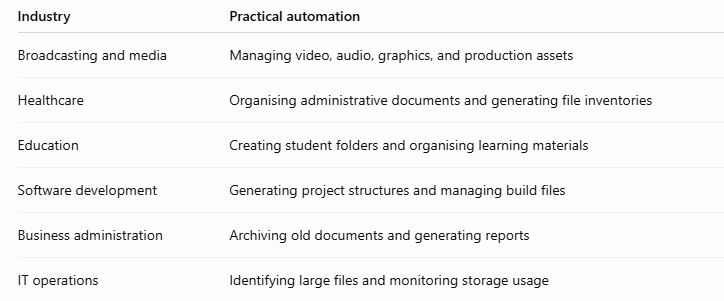
For example, in a broadcasting environment, a Python script could generate an inventory of media files stored on a shared NAS directory, helping technical staff identify large files and maintain better visibility over storage usage.
In such an environment, permissions, network availability, file locks, and concurrent access must also be considered before deploying automation against shared production storage.
10. Practical Challenges
Now that you understand the concepts, try these exercises:
Challenge 1: Project folder generator
Modify the folder creation example to generate a complete project structure for a software development project.
Include folders for:
- Source code
- Documentation
- Tests
- Assets
- Backups
Challenge 2: File inventory improvement
Extend the file-maintenance assistant to include:
- File creation or modification date.
- Number of files per extension.
- Total directory size.
- Number of subdirectories.
Challenge 3: Duplicate file detection
Build a script that identifies files with identical content using file hashes such as SHA-256.
Remember that files with the same name are not necessarily duplicates, and files with different names may contain identical data.
Challenge 4: Automated archiving
Modify the archiving example to preserve the original directory structure when moving older files.
Challenge 5: Safe batch renaming
Extend the batch-renaming tool to support additional file types and a user-defined starting number.
These exercises will help you develop a better understanding of Python’s file-system capabilities.
Conclusion: Automate the Repetitive Work
File and folder management may look like a small part of IT operations, but it is one of the easiest places to start introducing automation.
With Python’s pathlib, shutil, datetime, csv, and argparse modules, you can build tools that perform everyday tasks more consistently and efficiently.
The important lesson is not simply learning how to write a script that moves or renames files. It is learning how to design a repeatable workflow that is predictable, safe, and useful.
Start with a small task. Test it. Improve it. Then identify another repetitive activity that could benefit from automation.
Over time, these small improvements can become valuable tools for individuals, teams, and entire organisations.
Explore the code and follow the practical projects in this series on GitHub:
Python Automation 2026 — Official GitHub Repository
What’s Next?
In Part 3, we’ll move beyond local file operations and explore Web Automation with Python: APIs, Forms, and Browser Workflows.
We’ll examine how Python can interact with websites, communicate with APIs, submit information, and automate selected browser-based tasks.
If you haven’t already, read Part 1 of this series and follow along with the code examples.
Learn. Build. Automate.
Related articles

Python Automation 2026 — Part 3: Web Automation with Python: APIs, Forms, and Browser Workflows
Part 3 of Python Automation 2026 — From Scripts to Intelligent Workflows Imagine opening a website every morning, logging into an account, collecting information,…
Read article
Why Is Building a New Web Browser Almost Impossible?
The hidden engineering, enormous costs, security challenges, and technical barriers behind the software we use every day. Every day, billions of people open a…
Read article
Python Automation in 2026: From Simple Scripts to Real-World Workflows – Part 1
Part 1 of Python Automation 2026 — From Scripts to Intelligent Workflows Imagine arriving at work on Monday morning and discovering that hundreds of…
Read article← Why Is Building a New Web Browser Almost Impossible?
Understanding the Linux File System: A Beginner’s Guide to Linux Directories →
Leave a comment