
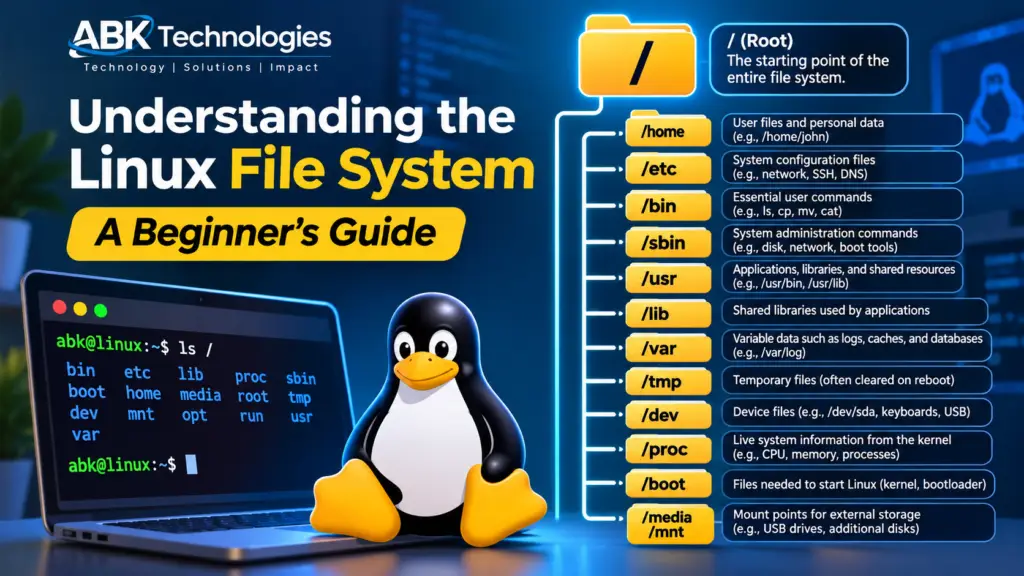
Have you ever opened a Linux terminal and wondered why everything starts with a single slash (/)? Where is the C: drive? What do directories such as /bin, /etc, /usr, and /var actually do?
If you are familiar with Windows, the Linux file system might initially seem confusing. Linux organizes files and directories differently, and understanding this structure is an important step towards becoming comfortable with Linux administration, software development, cybersecurity, and server management.
The good news is that you don’t need to memorize hundreds of directory names. Once you understand the purpose of the major directories, navigating Linux becomes much easier.
In this guide, we’ll explore how the Linux file system works, what its most important directories contain, and how you can remember them.
1. Understanding the Linux Root Directory (/)
The first thing you need to understand about Linux is that it does not organize storage using drive letters like Windows.
In Windows, you might have:
C:– Main operating system drive.D:– Additional storage drive.E:– USB flash drive.
Linux uses a different approach. Everything begins from a single starting point called the root directory, represented by a forward slash (/).
Think of the Linux file system as an upside-down tree. The root directory is the trunk, and every other directory branches out from it.
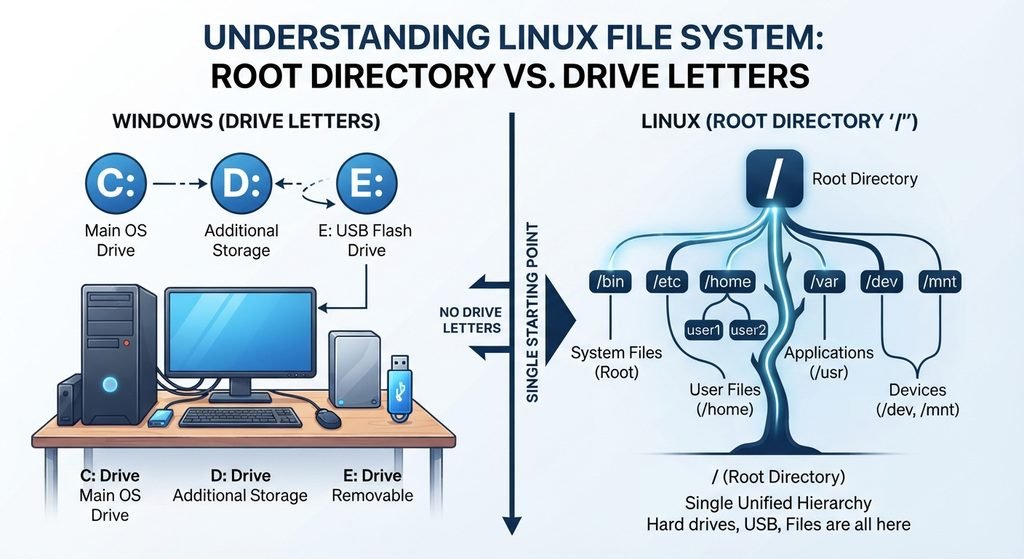
Your hard drives, USB devices, applications, user files, and system configurations are all accessible somewhere within this directory structure.
This is one of the fundamental differences between Windows and Linux.
2. The Most Important Linux Directories Explained
Let’s explore the directories you are most likely to encounter when working with Linux.
/home – Your Personal Workspace
The /home directory contains personal directories belonging to regular users.
For example, if your username is John, your home directory will typically be:
/home/john
This is where you store your:
- Documents and downloads.
- Pictures and videos.
- Personal projects.
- Source code and development files.
- Application settings and user preferences.
Think of /home as the equivalent of the Users folder in Windows.
Each regular user generally has a separate home directory, helping to keep personal files and settings organized.
/root – The Administrator’s Home Directory
This directory is often confused with the root directory.
Although they have similar names, they serve different purposes.
/represents the root of the entire Linux file system./rootis the home directory of the root user, which is the system’s superuser account.
The root user has extensive administrative privileges and can perform tasks that ordinary users are not permitted to perform.
For example, installing system-wide software, modifying protected configuration files, and managing critical system services may require administrative privileges.
Remember: /root is simply another directory inside /.
/bin – Essential User Commands
The name /bin comes from the word binaries.
It contains essential executable programs and commands used for everyday system operations.
Examples include:
ls– Lists files and directories.cp– Copies files and directories.mv– Moves or renames files.cat– Displays file contents.mkdir– Creates directories.rm– Removes files and directories.
Think of /bin as one of the toolboxes that allows you to interact with Linux through the command line.
Technical note: On many modern Linux distributions, /bin is a symbolic link to /usr/bin. This is part of the merged /usr directory structure.
/sbin – System Administration Commands
The /sbin directory traditionally contains essential system administration utilities.
These tools are commonly associated with tasks such as:
- Managing disks and file systems.
- Configuring networking.
- Maintaining system services.
- Performing system recovery.
- Managing system startup.
System administrators frequently work with these utilities.
On modern distributions, /sbin may also be a symbolic link to /usr/sbin.
/etc – System Configuration Files
If there is one Linux directory you should become familiar with early, it is /etc.
This directory stores system-wide configuration files.
For example:
/etc/ssh/– SSH server and client configuration./etc/hosts– Local hostname-to-IP address mappings./etc/fstab– File system mount configuration./etc/passwd– User account information./etc/hostname– System hostname configuration.
Whenever you need to configure a Linux service, network setting, or system component, /etc is often a good place to start.
Think of /etc as the configuration centre of your Linux operating system.
/usr – Applications and Shared Resources
Many beginners assume /usr stands for user. However, its historical meaning comes from Unix system resources.
Today, /usr contains a large portion of the operating system’s software, applications, libraries, and documentation.
Some important subdirectories include:
/usr/bin– General executable programs./usr/sbin– System administration programs./usr/lib– Shared libraries and supporting files./usr/share– Architecture-independent data and documentation./usr/local– Software and resources installed locally by the administrator.
For example, when you install development tools or other applications through your Linux package manager, their executable files may be placed in /usr/bin.
Think of /usr as the main software and resource collection of your Linux system.
/lib – Shared Libraries
Applications need more than executable files to function. They often depend on shared libraries containing reusable code.
The /lib directory traditionally stores essential shared libraries required by system programs and the system itself.
These libraries allow multiple applications to use common functionality without each application having to include its own separate copy.
This improves efficiency and simplifies software maintenance.
On many modern Linux systems, /lib is a symbolic link to /usr/lib.
/tmp – Temporary Files
As the name suggests, /tmp is used to store temporary files.
Applications and processes may create temporary data here while performing different operations.
Examples include:
- Temporary application files.
- Intermediate processing data.
- Short-lived working files.
- Temporary files created during installations.
Be careful about storing important information in /tmp.
Many Linux distributions automatically clean temporary files periodically or during system startup. The exact behaviour depends on the distribution’s configuration.
/var – Variable Data and System Logs
The /var directory contains data that changes frequently as the system operates.
Unlike application binaries, which generally remain unchanged between software updates, variable data can continuously grow or change.
Examples include:
- System logs.
- Application logs.
- Email queues.
- Cache files.
- Database files.
- Printer queues.
One particularly important subdirectory is:
/var/log
This is where many Linux services and applications store their log files.
When troubleshooting a Linux server, investigating /var/log can help you identify errors, failed services, authentication issues, and other system problems.
For example, you can use:
ls /var/log
To list the available log files.
Think of /var as the changing-data and activity-recording centre of Linux.
/dev – Device Files
Here is something interesting about Linux: many hardware devices are represented through special files.
The /dev directory contains device files that allow applications and the operating system to interact with hardware.
Examples include:
/dev/sda– A disk device, where present./dev/sda1– A partition on that disk./dev/tty– A controlling terminal device./dev/null– A special device that discards written data./dev/zero– A special device that provides zero bytes.
This design follows the traditional Unix philosophy of treating many resources through file-like interfaces.
It makes interacting with devices consistent and flexible.
/proc – Live System Information
Unlike ordinary directories, /proc is not a conventional directory stored on your hard drive.
It is a virtual file system created by the Linux kernel.
It provides information about:
- Running processes.
- CPU information.
- Memory usage.
- Kernel settings.
- System configuration.
- Hardware and operating system details.
For example:
cat /proc/cpuinfo
Displays information about the system’s processors.
You can also run:
cat /proc/meminfo
To view memory-related information.
Think of /proc as a live information dashboard that provides insight into what is happening inside your Linux system.
/boot – Files Required to Start Linux
The /boot directory contains important files needed during the system startup process.
Depending on your Linux distribution and boot configuration, it may contain:
- Linux kernel images.
- Initial RAM file system images (initramfs).
- Bootloader-related files.
- Other startup resources.
When you switch on your computer, the boot process eventually loads the Linux kernel into memory so that the operating system can start.
Without the required boot files and bootloader configuration, Linux may fail to start correctly.
/media – Removable Storage Devices
What happens when you connect a USB flash drive or insert a DVD into a Linux computer?
On many desktop Linux distributions, removable devices are automatically mounted under /media or a user-specific subdirectory.
For example:
/media/john/USB_DRIVE
This allows you to access the contents of the USB drive through the normal directory structure.
/mnt – Manually Mounted Storage
The /mnt directory is traditionally used as a temporary mounting point for storage devices.
System administrators may use it when manually mounting:
- Additional hard drives.
- External storage.
- Network file systems.
- Disk partitions.
- Other storage resources.
For example, an administrator might mount a disk partition using:
sudo mount /dev/sdb1 /mnt
After mounting, the contents of the partition become accessible through /mnt.
The key difference is that /media is commonly associated with automatically managed removable devices, while /mnt is traditionally used for manual mounting.
3. How Linux Handles Storage Devices
One of the biggest differences between Linux and Windows is how they handle additional storage.
In Windows, a USB flash drive might appear as E:.
In Linux, that same USB drive becomes accessible through a directory within the existing file system.
This process is called mounting.
Mounting connects a storage device or file system to a particular directory, allowing users and applications to access its contents.
For example:
/mnt/backup
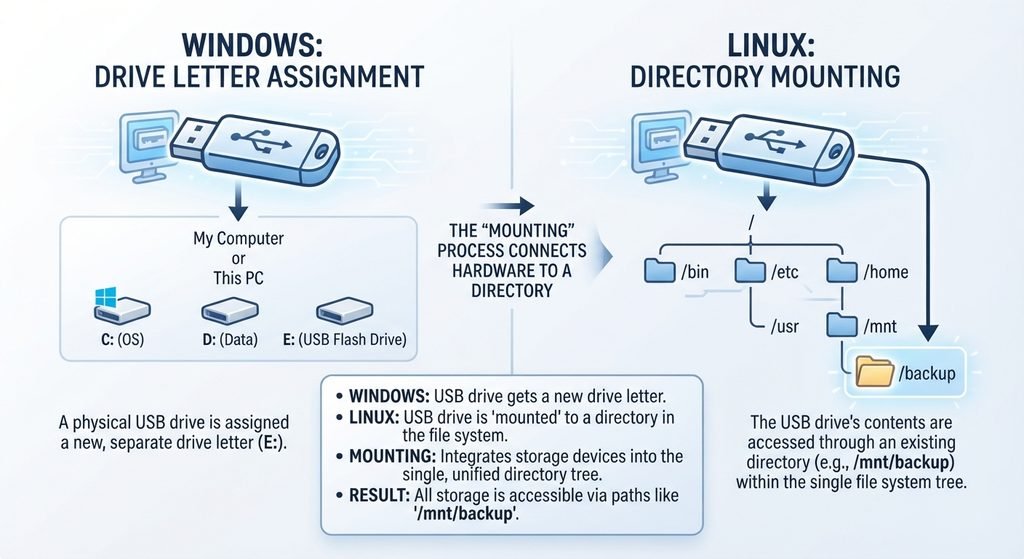
Could serve as the location where an additional storage device is mounted.
This approach allows Linux to manage multiple storage devices under one unified directory tree.
4. Understanding the Linux File System Through Practical Commands
Knowing what each directory does is important, but you also need to understand how to navigate the file system.
Here are some basic Linux commands worth practising.
Display your current directory:
pwd
This prints the full path of your current working directory.
List files and directories:
ls
Displays the contents of your current directory.
Display hidden files:
ls -la
Lists files, including hidden files, with additional information.
Move into another directory:
cd /etc
Changes your current working directory to /etc.
Move one directory backwards:
cd ..
Moves to the parent directory.
Navigate to your home directory:
cd ~
Takes you to your personal home directory.
Display disk space usage:
df -h
Shows available and used disk space in a human-readable format.
Display directory sizes:
du -sh /var/log
Shows the total size of the specified directory.
Practising these commands will help you become more comfortable working with Linux.
5. A Simple Way to Remember the Linux File System
Instead of memorizing every directory individually, group them according to their purpose.
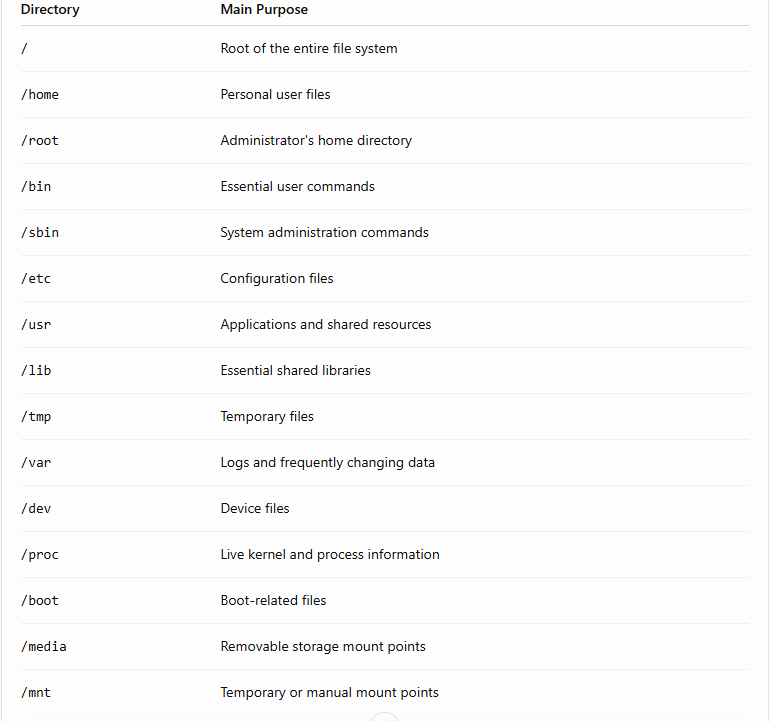
A simple memory trick is to associate each directory with a specific responsibility:
- Users have
/home. - Administrators have
/root. - Commands are in
/binand/sbin. - Configurations are in
/etc. - Software lives largely in
/usr. - Libraries are in
/lib. - Temporary files go into
/tmp. - Logs and changing data belong in
/var. - Devices appear in
/dev. - Live system information is available in
/proc. - Startup files are in
/boot. - External storage is commonly mounted under
/mediaor/mnt.
6. Why Understanding the Linux File System Matters
Understanding the Linux directory structure is more than just learning where files are stored.
It is an essential skill for anyone interested in:
Linux System Administration: You will know where to find configuration files, manage services, inspect logs, and troubleshoot system problems.
Cybersecurity: Understanding directories such as /etc, /var/log, /proc, and /dev helps when investigating system activity, permissions, and security configurations.
Software Development: Knowing where applications, libraries, executables, and user files are stored makes it easier to develop and deploy software.
DevOps and Cloud Computing: Linux powers many cloud servers, containers, and infrastructure platforms. Understanding its file system is an important foundation for managing these environments.
Server Management: Whether you are managing a web server, database server, or application server, you will regularly interact with the Linux directory structure.
Conclusion
The Linux file system may look complicated when you first encounter it, especially if you are coming from Windows. However, once you understand that everything begins at the root directory (/), the structure becomes much easier to follow.
Each directory has a specific responsibility, from storing user files and application software to managing configurations, hardware devices, logs, and system startup files.
You don’t need to memorize everything in one day. Start by exploring /home, /etc, /var, /usr, and /bin. Practise navigating between them using basic terminal commands.
The more time you spend working with Linux, the more natural its file system will become.
Remember: Learning Linux is not just about knowing commands. It is about understanding how the operating system works behind the scenes.
Related articles
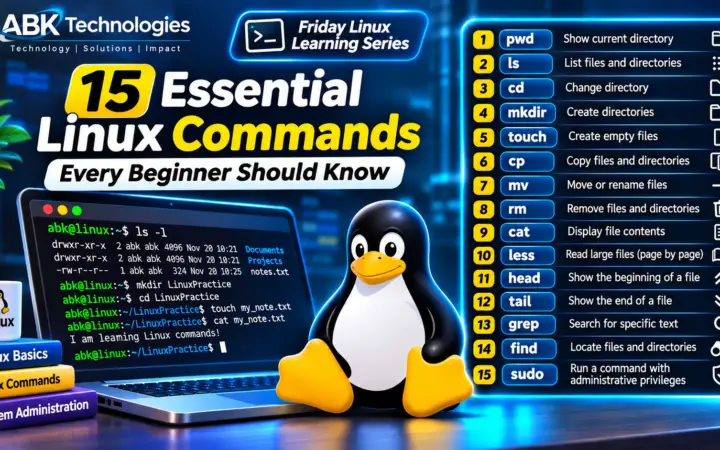
15 Essential Linux Commands Every Beginner Should Know
If you have recently started learning Linux, one of the first things you will notice is how much work can be done through the…
Read article
El Niño Is Coming: How IT and Technical Departments in Ghana Should Prepare for the 2026–2027 Climate Event
Power outages, extreme heat, flooding, water shortages and infrastructure disruptions could test the resilience of organisations across Ghana. Is your IT department prepared? Climate…
Read article
How Does a 1 GB Folder Become a 400 MB ZIP File? The Science Behind Data Compression
Imagine you have a folder containing 1 GB of photos, documents, videos, or other files. You compress it into a ZIP archive, and suddenly…
Read article← Python Automation 2026 — Part 2: Automating Files, Folders, and Everyday Tasks with Python
Python Automation 2026 — Part 3: Web Automation with Python: APIs, Forms, and Browser Workflows →
Leave a comment